Incoming calls
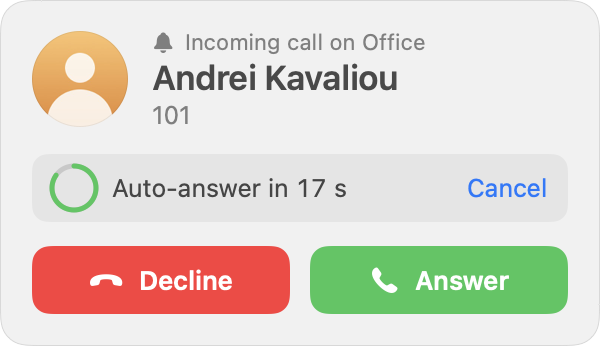
Where a call appears
| Main window | What you see |
|---|---|
| Hidden, minimised or behind another app | A floating window and a system notification. |
| Visible and frontmost | The call shows inside the main window: the Dialpad tab switches to the incoming state with Answer and Decline. |
The floating window
A small always-on-top panel (on every Space) with the caller's avatar, "Incoming call on Office", name and number, and two buttons: Decline (red) and Answer (green). It never takes keyboard focus, so what you are typing elsewhere is not interrupted. It is draggable and remembers its position. The ringtone plays through the ringtone device chosen in Audio.
The notification
An alert-style notification ("Incoming call · Office", name, number) with Answer and Decline actions. It stays until acted on, also works from Notification Center and on a locked screen, and disappears when the call ends.
Keys
| Key | Action |
|---|---|
| ⌘↩ | Answer. |
| ⌘. | Decline (the caller gets 486 Busy Here; the entry is logged as missed). |
| Esc | Silences the ringtone only; the call keeps ringing. |
| ↩ (inside the main window) | Answer. |
An unanswered or declined call becomes a missed call with a red badge on the Dock icon, the menu bar icon and the Call Log tab.
A call while you are on a call
The window adds "You are on a call with Andrei Kavaliou (03:12)." and offers Decline, Hold & Answer (holds the current call, answers the new one) and End Current & Answer. Whether this window appears at all, with a tone or with the ringtone, or whether the second caller simply gets Busy, is set in Settings › Calls; see "Second incoming call" in Calls.
Bring the main window to the front
Settings › Calls › Bring the main window to the front on an incoming call, off by default. When on, the main window is ordered to the front whenever a call rings, without activating MacroSIP, so nothing you type in another app lands in it. "The incoming-call window still appears as well." Until you click into the main window it ignores the call keys (DTMF digits, Return to answer or call back).
Auto-answer
Settings › Calls › Auto-answer:
| Row | Meaning |
|---|---|
| Answer incoming calls automatically: Off / All calls / Contacts only | Default Off. "Contacts only" answers only callers whose number is in your Contacts. |
| Delay before answering | Seconds before the call is picked up. Default 5. |
| Honour the server's answer-after request | "Answers when the PBX sends Call-Info: answer-after=N (intercom, paging), even if the mode is Off." Only requests from your own server are honoured. |
When auto-answer is going to fire, the incoming window shows a countdown ring, "Auto-answer in 4 s", and a Cancel link that stops it for this call so you can answer by hand or let it ring.
Footer rules: "Do Not Disturb wins over auto-answer. Auto-answer never answers a second call while you are already on one."
Do Not Disturb
DND rejects every incoming call with 486 Busy Here and, on accounts that publish presence, publishes the Do Not Disturb status. The caller hears busy; the call is logged as missed.
Turn it on from the menu bar icon (Do Not Disturb submenu), from Settings › General, with ⌥⌘D (Call menu), or by choosing Do Not Disturb under My Status. The menu bar icon shows a moon while DND is on.
Timed DND
The submenu and the Settings popup offer Off, On, For 30 minutes, For 1 hour and Until tomorrow 9:00 (the coming 9:00: today if chosen before 9:00). While a timer runs, the menu item reads "Do Not Disturb · 27 min" and Settings shows "Until 14:30 · 27 min left". When the time is up DND ends by itself and your previous status comes back. A timed DND survives a restart.
Deny rules
Settings › Calls › Incoming calls › Reject calls from:
| Choice | Who is rejected |
|---|---|
| Nobody | Nobody; default. |
| Everyone | Every incoming call. Your own outgoing calls are unaffected. |
| Numbers not in Contacts | Callers whose number matches no number of any contact. |
| Anonymous callers | Calls without a caller number (anonymous or withheld). |
"A rejected call never rings. The caller gets 603 Decline and the call log shows “Rejected: rule”." Anonymous callers get 433 Anonymity Disallowed instead of 603. The engine answers before anything rings, so you only see a missed entry with the orange note "Rejected: rule".
Notes you may see in the call log
| Note | Meaning |
|---|---|
| "Rejected: rule" | Turned away by a deny rule. |
| "Rejected: on another call" | Turned away in single-call mode. |
| "Rejected: call limit" | A fifth call while four were in progress. |
| "Connection lost" | The media did not return after a network change. |
Caller names
The name shown comes from the SIP display name, or from a matching contact (any of its numbers), or from a directory source looked up for at most one second while the call rings (see Directory).
Voicemail
Each account can follow the server's voicemail indicator (MWI): Voicemail indicator (MWI) in the Advanced group of the account editor, on by default (Accounts). "Shows the number of new messages the server reports." A server that pushes the indicator without a subscription is shown too.
- Status bar. While any account reports waiting messages, the status bar at the bottom of the main window shows an envelope badge with the number of new messages over all accounts (tooltip "Voicemail: 2 new"). A click dials the voicemail number of the first account with waiting messages. The badge is hidden when nothing waits; the menu bar icon and the Dock badge are not used for voicemail.
- Menu bar. The menu has a Voicemail: 2 new item per enabled account with a voicemail number ("Voicemail · Office: 2 new" when several accounts have one); it calls that account's voicemail number and is dimmed while nothing waits (Menu bar).
- Voicemail number. Both need the Voicemail number of the account (for example
*97) in the account editor; without it the badge cannot dial and the account has no menu item. - Sound. New voicemail in Settings › Audio › Sound events adds three beeps when the count of new messages grows (Audio).