Accounts
An account is one SIP identity: user, server, credentials and transport. Several accounts can be enabled and registered at once; one of them is the default outgoing account.
Adding an account
Open the editor from the first-launch screen (Add Account…), from Settings › Accounts (+, Edit… or a double-click on a row), or from the account pop-up (Account Settings…, ⌘,).
The basics are the only fields you normally need:
| Field | Meaning |
|---|---|
| Account name | Short label used in the account pop-up, status bar, call panel and menu bar, for example "Office". |
| SIP server | Host name or IP address, for example pbx.example.com. An invalid value shows "Enter a host name like pbx.example.com, or an IP address." |
| Username | The SIP user, for example andrei. |
| Password | Stored only in the login Keychain, never in a file. |
| Enabled | Off stops registration and outgoing calls; the account stays in the pop-up, dimmed, and leaves the status bar. Settings and the Keychain item are kept. |
Save stores the password in the Keychain and registers; the status beside the buttons updates live ("Not saved", "Registering…", "Registered").
The Advanced group
Everything else is folded into a collapsed Advanced disclosure. It opens by itself when any of its values differs from the defaults, so you can see why an account behaves as it does.
| Row | Meaning | Default |
|---|---|---|
| Display name | "Shown to people you call." Caller ID sent to the remote party. | empty |
| Auth username | "Only if different from the username." Used for digest authentication. | empty |
| Domain | "Empty uses the SIP server." Used to build SIP URIs from dial strings. | empty |
| Outgoing proxy | Route set, for example sip:proxy.example.com;lr. |
empty |
| Transport | UDP, TCP or TLS. | UDP |
| Media encryption (SRTP) | Disabled, Optional or Mandatory. SRTP is independent of the signalling transport. | Disabled |
| Registration expiry | 60 to 3600 seconds. | 300 |
| Verify server certificate | TLS only. "Turn off only for a server with a self-signed certificate." | on |
| Voicemail number | "Dialled from the menu bar and the status bar." Number or SIP URI that the voicemail items call, for example *97. In the Voicemail group. |
empty |
| Voicemail indicator (MWI) | "Shows the number of new messages the server reports." Subscribes to the server's message-summary; new messages appear as an envelope badge in the status bar and as the Voicemail item in the menu bar (see Incoming calls). A server that pushes the indicator without a subscription is shown too. | on |
| Register with server | Off keeps the account for outgoing calls only: it never registers, takes no incoming calls, and shows "Outgoing only" in Settings › Accounts. | on |
| Default for outgoing calls | Only one account is default; turning it on clears the previous one. | on for the first account |
| Publish my presence | "Lets contacts who watch you see Available / Away / DND." | off |
STUN, ICE, the local SIP port and keep-alive are not per account; they live in Settings › Network (see Settings).
Private servers do not use STUN. An account whose server is addressed by a private IP address (10.x, 172.16–31.x, 192.168.x or 100.64–127.x, such as an office PBX on the LAN or over a VPN) does not use the STUN server from Settings › Network. The first registration then carries the Mac's own address instead of the public one that STUN would find, because a server inside your network cannot be reached through that public address; the server does not have to correct it, and incoming calls also arrive from a server that does not rewrite it. Nothing to set: this applies on its own, from 26.2.
The Test button
Test is enabled once SIP server, Username and Password are filled. It registers with a temporary account and shows the result inline:
| Result | Text |
|---|---|
| Success | "Registered successfully (120 ms)" |
| Rejected | "Test failed: 401 Unauthorized" (or 403, …) with "The server rejected the username or password. Nothing was saved." and a Test Again button. |
| No answer | "Test failed: No response" with "The server did not answer in time. Nothing was saved." |
Several accounts
Settings › Accounts lists every account with a status dot, Name (a blue Default badge marks the default outgoing account), Address, Transport and Status. Drag rows to reorder; the order is used in the account pop-up and the status bar. With eight or more accounts a Filter accounts field narrows the list.
− removes the selected account after "Delete account “Office”?" — "Its password is removed from Keychain. Call history is kept."
Importing from MicroSIP
Settings › Accounts › Import from MicroSIP… brings in the accounts and contacts of a MicroSIP installation. Nothing else of MicroSIP is read.
- Find MicroSIP.ini. On Windows, MicroSIP keeps it next to MicroSIP.exe or in
%APPDATA%\MicroSIP. Copy the file to your Mac and choose it in the file picker. - Check the preview. A Contacts.xml in the same folder is used automatically; the Contacts file row lets you choose another file or Don't import contacts. The preview lists the accounts to import, the number of contacts, the Skipped items (already in MacroSIP, or listed twice in the file) and the Warnings. Nothing is written until you press Import; Cancel changes nothing.
- Enter the passwords. Accounts are imported switched off. MicroSIP stores its passwords in a form MacroSIP cannot read, so type each password once to switch its account on. Enter Password… opens the first imported account in the editor. The others show "Needs password" in Settings › Accounts until a password is saved.
An account without a server in the file does not register, so it needs no password: it is imported as an outgoing-only account and can be switched on without one. An account with neither a server nor a domain is skipped, with a warning.
For scripts and administrators, the same import runs from the command line:
/Applications/MacroSIP.app/Contents/MacOS/MacroSIP --import-microsip MicroSIP.ini [--contacts Contacts.xml] [--dry-run]
--dry-run prints the report and writes nothing. The command adds the accounts (switched off, without passwords) and the contacts. It refuses to write while MacroSIP is running, so quit MacroSIP first. It exits with 0 when the import is done, 1 when it was refused or failed, and 2 when the arguments are wrong.
The account pop-up
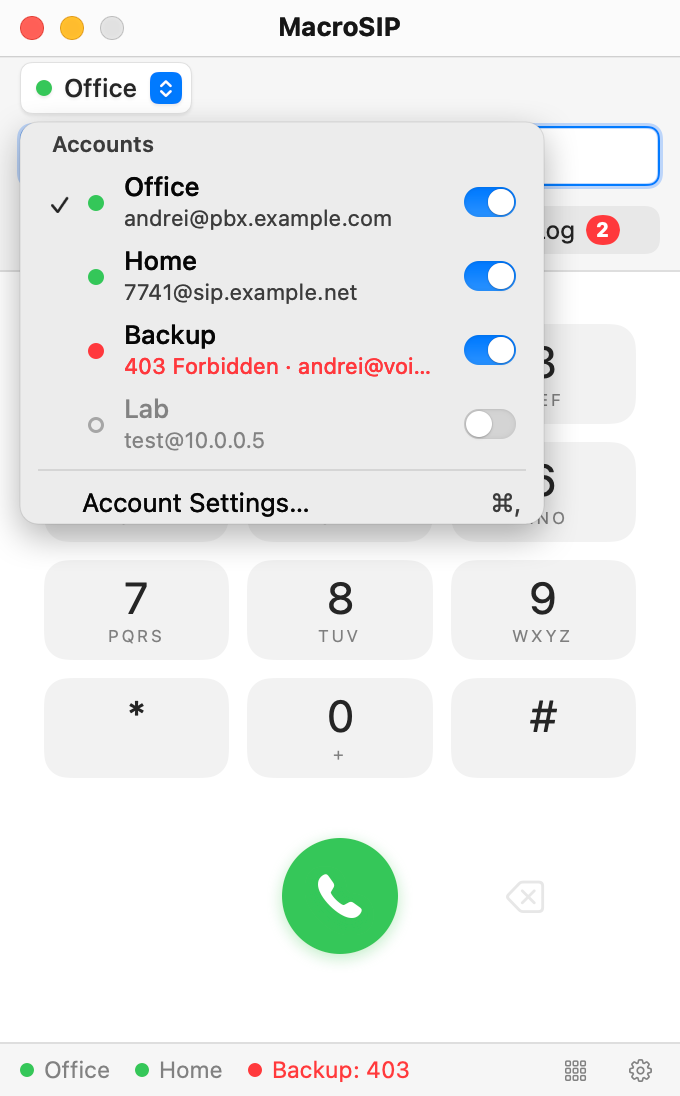
The button above the number field in the main window shows the outgoing account with its registration dot. Click it to open the pop-up:
- One row per account: a checkmark on the chosen outgoing account, the dot, the name with the SIP address beneath ("andrei@pbx.example.com"; a failing account shows "403 Forbidden · andrei@pbx.example.com" in red), and a switch at the right.
- Clicking a name picks it as the outgoing account for the next call only and closes the menu. The initial value is the default outgoing account.
- The switch turns the account on or off without closing the menu. This is the same state as Enabled in the editor and "Disabled" in Settings › Accounts. A failing account is silenced in two clicks.
- With eight or more accounts a Search accounts field appears first, and enabled accounts are listed before disabled ones.
- Account Settings… (⌘,) opens Settings at Accounts.
Status bar and statuses
The status bar at the bottom of the main window shows one item per enabled account, in account order. Click an item to open Settings › Accounts with that account selected. At the right end of the bar sit the envelope badge with the count of new voicemail messages (shown while any account reports waiting messages; a click dials the voicemail number, see Incoming calls), the Quick keys button and a gear button that opens Settings at the last used tab (tooltip "Settings…").
| Dot | Status text | Meaning |
|---|---|---|
| green | account name, "Registered" | REGISTER accepted. |
| orange | "Registering…" | REGISTER sent, no final answer yet. Normal for a second or two. |
| red | "Office: 403"; Settings › Accounts shows "403 Forbidden — REGISTER rejected at 14:52. Check the username and password." with Retry | The server refused the registration. 403 and 401 almost always mean a wrong username, auth username or password. |
| orange | "Office · retry in 8 s", "Office · retrying…", "Reconnecting…" | A temporary failure (timeout, 5xx, lost connection); the engine retries with backoff. |
| grey, hollow | account name in grey, "Outgoing only" | Enabled, but Register with server is off. |
| grey, hollow | "Disabled" (Settings only; the account leaves the status bar) | Switched off. |
| orange | "Needs password" (Settings only; imported from MicroSIP) | Switched off until a password is saved. |
| grey glyph | "No network" | The Mac has no network path; accounts come back by themselves. |
With one to three enabled accounts there is one item per account. From four on, the bar shows one summary, "4 of 6 online · 2 failed", red when any account failed, orange while some are still connecting, green otherwise; clicking it opens the account pop-up. "No accounts" appears when none exist, "All accounts off" when none is enabled.