Calls
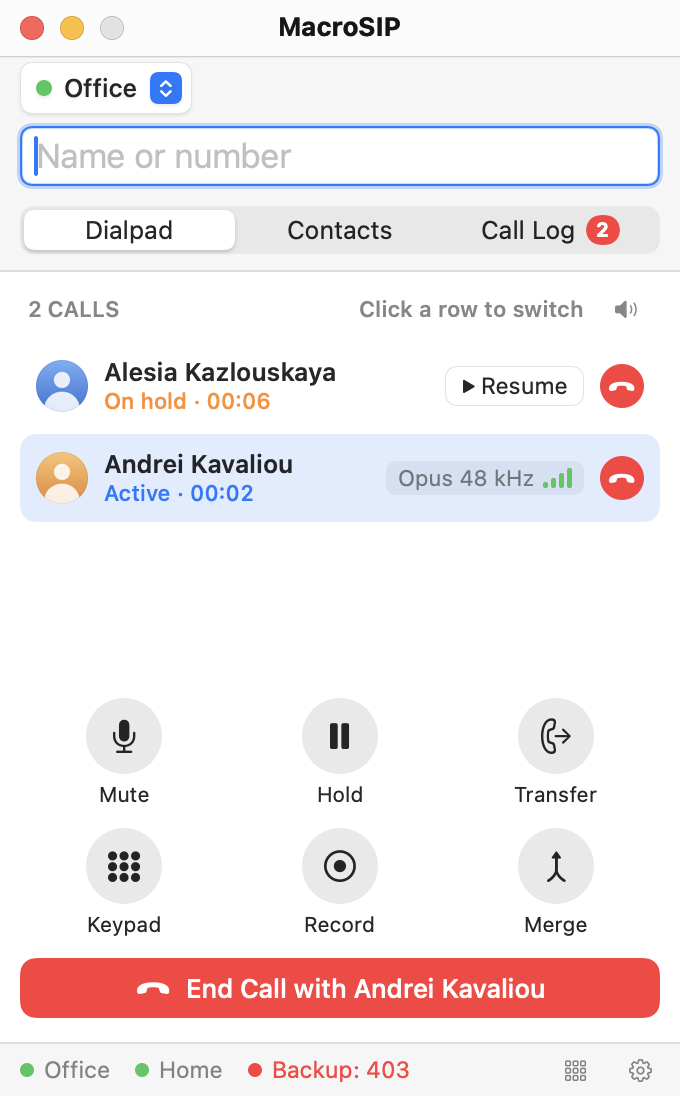
MacroSIP handles up to four calls at once. Exactly one call is active (you hear and speak); the others are on hold. The main window stays 340 × 520 pt: during a call the Dialpad tab turns into the call panel, and the other tabs show a one-line summary bar with the caller's name, the timer and an end button.
Dialing
| Way | How |
|---|---|
| Number field | Type a number or a name, or paste a sip:/tel: URI; spaces and dashes are fine. Return or the green Call button places the call. Letters open a suggestions list of matching contacts (also directory results, see Directory). |
| Dial pad | Keys append to the field; long-press 0 inserts +. With an empty field, Call redials the last number. |
| Contacts | Double-click a row, press Return, or use the row's handset button or the context menu (Call, Call from ▸). |
| Call Log | Double-click or Return calls back through the account the call came in on. |
| Links | sip:, sips: and tel: links open in MacroSIP once it is the default handler (Settings › General › Links › Make Default). By default the link only fills the field so you can check it first. |
The dial string is resolved with the outgoing account's domain; the account pop-up above the field picks the account for the next call (Accounts).
The call panel
The panel shows the remote party, the timer and a state line: "Calling…", "Ringing…", "Connected", "On hold", or "Reconnecting… 12 s" while the media path is being restored after a network change. The chip row shows "via Office" (only with two or more enabled accounts), the codec and quality chip ("Opus 48 kHz" with signal bars), an SRTP lock when media is encrypted, and the speaker icon of the volume popover.
| Button | Does |
|---|---|
| Mute | Toggles your microphone. ⌘⇧M while MacroSIP is frontmost. |
| Hold / Resume | Puts the call on hold; the timer keeps running and the caller hears the hold music (below). With several calls, Resume on a held call holds the active one first. |
| Transfer | Opens the transfer popover. |
| Keypad | Swaps in the DTMF keypad; Back to call returns. |
| Record | Starts or stops recording; red while recording. |
| Merge | Joins all answered calls into a local conference. Dimmed with one call. |
End Call (⌘D) ends the active call; with several calls it reads "End Call with Alesia Kazlouskaya".
Hold
A held call keeps its SIP session and its timer; your microphone and speaker are disconnected from it. What the caller hears is set in Settings › Audio › Hold music › Source: Built-in (a short looping melody, the default), Custom file… ("Custom: office-hold.m4a") or Off (silence). "The caller hears this while on hold." The change applies to calls already on hold; the music is heard by the held party only and is not recorded. Some PBXs replace it with their own music on hold (Troubleshooting). Details in Audio.
Keypad and DTMF
The keypad echoes the digits sent; digit keys on the keyboard also send DTMF while the main window is key. The method is set in Settings › Calls › DTMF method: Automatic uses RFC 2833 and falls back to SIP INFO; RFC 2833, SIP INFO and In-band force one method for the next digits.
Blind and attended transfer
The popover "Transfer Volha Marozava to" takes a number, URI or contact name and suggests up to five contacts.
- Transfer Now — blind transfer: hands the call over immediately. Return triggers it.
- Call First — attended transfer: holds the current call and calls the target. The panel then shows "Consulting · 00:21" and "On hold · waiting for transfer" with the banner "Transfer Volha Marozava to Dzmitry Navitski?" — "Volha and Dzmitry will be connected and you leave both calls." Complete Transfer joins them; Cancel hangs up the consultation and resumes the original call.
Several calls
Typing a number and pressing Return during a call places a second call and holds the first. The panel lists one row per call ("2 CALLS · Click a row to switch"): Active · 01:12, On hold · 00:40 with a Resume button, or Consulting. Clicking a held row makes it active and holds the current one; each row's small red button ends that call only. A fifth call is rejected with 486 and logged as "Rejected: call limit".
Merge, conference, split
Merge mixes all answered calls on your Mac (PJSIP conference bridge, not a server conference). Held calls are resumed and joined too, so nobody stays on hold. The header reads "CONFERENCE · 2 PARTICIPANTS". Split on a participant takes that person out as a held call; the red button ends that leg; End Conference ends every leg.
A second incoming call
Settings › Calls › When a call comes in during a call: Call waiting (tone and window) shows the incoming window and plays a short tone in the earpiece; Window only shows it with the normal ringtone; Busy (single-call mode) answers the second caller with 486 Busy Here at once, nothing rings, and the log notes "Rejected: on another call". The window's buttons are described in Incoming calls.
Volumes
The speaker icon opens Call volume: Speaker (what you hear) and Microphone (what the other side hears), each 0–200 %, default 100 %, applied live and remembered for the next call; Reset returns both to 100 %. ⌘↑ / ⌘↓ change the speaker by 10 % and flash "Speaker volume: 110 %". The ringtone volume is in Audio.
Quality indicator and poor-connection notice
The quality bars come from RTCP statistics every two seconds: four green bars for good, two or three orange for fair, one red for poor. Hover for "Loss 0.5 % · Jitter 12 ms · RTT 48 ms · MOS 4.3". After six seconds of poor quality a yellow banner names the worst metric, for example "Poor connection: 12 % packet loss" or "Poor connection: high jitter (90 ms)", and goes away with the first better sample. If the media does not return within 60 s after a network change the call ends with the log note "Connection lost".
Recording
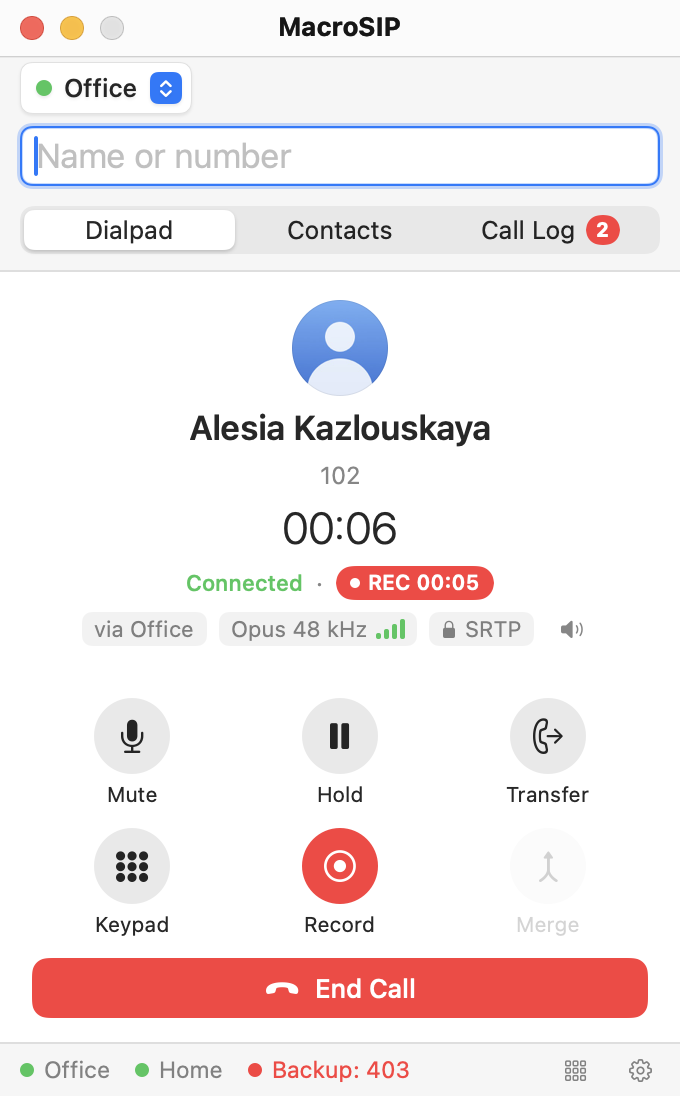
- Record in the call panel records the active call; the state line shows a red "REC 00:08" pill. The button is always available.
- Settings › Recording › Record all calls automatically records every call.
- Channels: Mono mixes both sides into one channel; Stereo keeps you on the left channel and the caller (every conference participant) on the right. Since 26.2 both channels are written together from the same audio, so your side and the far side stay aligned for the whole call, also after hold and resume and when one side was silent for a while.
- Settings › Recording › Notice tone › Play a notice tone while recording (off by default) adds a short beep that both sides hear and that is written into the recording: one second after a recording starts and then Every 15 seconds (5–60). "A short beep every 15 seconds tells both sides that the call is recorded." Switching it on applies to recordings in progress; while the recorded call is on hold nothing is recorded (no silence is added to the files) and no beep is played.
- Files are M4A (AAC), named like
2026-10-10 14.52 Name or number (in).m4a, in~/Music/MacroSIP Recordingsor the folder you choose. If the conversion fails the WAV is kept and a banner says so. - A call log entry with a recording shows a play button and an inline player; the context menu adds Play recording and Show in Finder (Contacts and call log).
Headset buttons (answer, hang up, hold, mute and redial from a USB headset) are described in Audio. Video calls are planned for later releases.
Global hotkeys
Global hotkeys answer, hang up and mute a call while another app is in front, so you do not have to switch to MacroSIP. They are off by default. Turn on Use hotkeys in any app in Settings › Calls › Global hotkeys; the first time, the three fields fill in with the suggested combinations:
| Field | Suggested | What a press does |
|---|---|---|
| Answer | ⌃⌥A | Answers the call that has been ringing longest. The active call is held first. |
| Hang up | ⌃⌥H | Ends the current call. With no connected call, declines the oldest ringing call. In a conference, ends the whole conference. |
| Mute | ⌃⌥M | Turns the microphone of the current call off or on. In a conference, all legs. |
To change a combination, click its field and press the new keys; Esc cancels and Delete clears it. A combination needs ⌘, ⌃ or ⌥, one combination cannot serve two actions, and combinations used by MacroSIP's menus or by standard macOS shortcuts are refused with a short reason under the field. If macOS refuses a saved combination, that field says so and the other two keep working.
Hotkeys need no permission. They do nothing when there is no call to act on. macOS does not report when another app uses the same keys, so that app can receive the press too; choose keys that no other app uses.